Google Messages Introduces "Tap to Draft" Feature for Enhanced Texting Experience
The latest update to Google Messages brings an exciting new feature called "Tap to Draft." This innovative addition allows users to customize their responses before sending, making texting more efficient and personal. Whether you're replying to a friend or coordinating plans, "Tap to Draft" enhances the Smart Reply functionality you've come to love. Read on to discover how to enable this feature and why it may change the way you communicate.
Exploring the "Tap to Draft" Feature
Back in March, we first learned about the "Tap to Draft" capability within Google Messages. This feature builds on the Smart Reply functionality, which provides contextually relevant responses at the tap of a button. For instance, if you receive a message from your friend asking if you want to grab dinner, you'll see suggested replies like:
- Sounds great, see you at 5!
- I can't do 5, would 6 work?
- Sure, which restaurant are you referring to?
Traditionally, selecting a response would send it immediately. However, with "Tap to Draft," you can select a response to go to the text input bar for further editing before sending it off.
A Look Back at the Feature's Evolution
This feature was first spotted earlier this year when it was initially termed "Tap to Edit." After extensive testing and feedback, Google renamed it "Tap to Draft," and it is now included in the latest stable version (20260522_00_RC00) of Google Messages for Android.
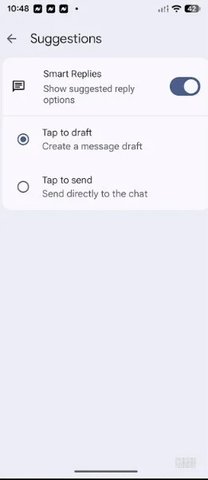
Settings page giving you the option to choose Tap to send or Tap to draft. | Image by PhoneArena
How to Enable "Tap to Draft" on Your Android Device
To activate this feature, simply open the Google Messages app and tap your profile icon located in the top right corner. From the drop-down menu, navigate to Messages settings > Suggestions & Actions > Suggestions. Ensure that the toggle for Smart Replies is set to 'on' to begin using the feature.
Making the Choice: "Tap to Send" vs. "Tap to Draft"
Now the decision is yours. If you prefer immediate responses, keep "Tap to Send" enabled; this will send your chosen Smart Reply instantly. Alternatively, opting for "Tap to Draft" allows the selected response to appear in the text input bar, giving you the chance to edit and personalize your message before sending it out.
If you haven't yet downloaded Google Messages on your Android device, you can easily do so from the Google Play Store by following this link.