Discover the 20 Best Hidden Gems in the Galaxy S26 Ultra
This article is sponsored by Samsung. The views expressed here are entirely those of PhoneArena, unaffected by sponsorship.
Disclaimer: The opinions expressed in this article are entirely those of PhoneArena.
With the Galaxy S26 Ultra, Samsung continues to set the benchmark for mobile innovation. The device's One UI is a treasure chest filled with features that enhance user experience, many of which remain under the radar. If you're eager to unlock the full potential of your new device, here are 20 hidden features you won’t want to miss!
Camera Tips and Tricks
Adjust Minimum Shutter Speed and ISO
One of the most significant updates in One UI 8.5 addresses a common issue with Galaxy cameras—motion blur. To take full control of your photography:
- Open the Camera app.
- Navigate to its Settings page.
- Scroll down to Camera Assistant and install it if necessary.
- Look for "Advanced Photo Mode controls."
- Modify the "Set minimum shutter speed" to your preference (options include 1/1000, 1/500, 1/120, or 1/30).
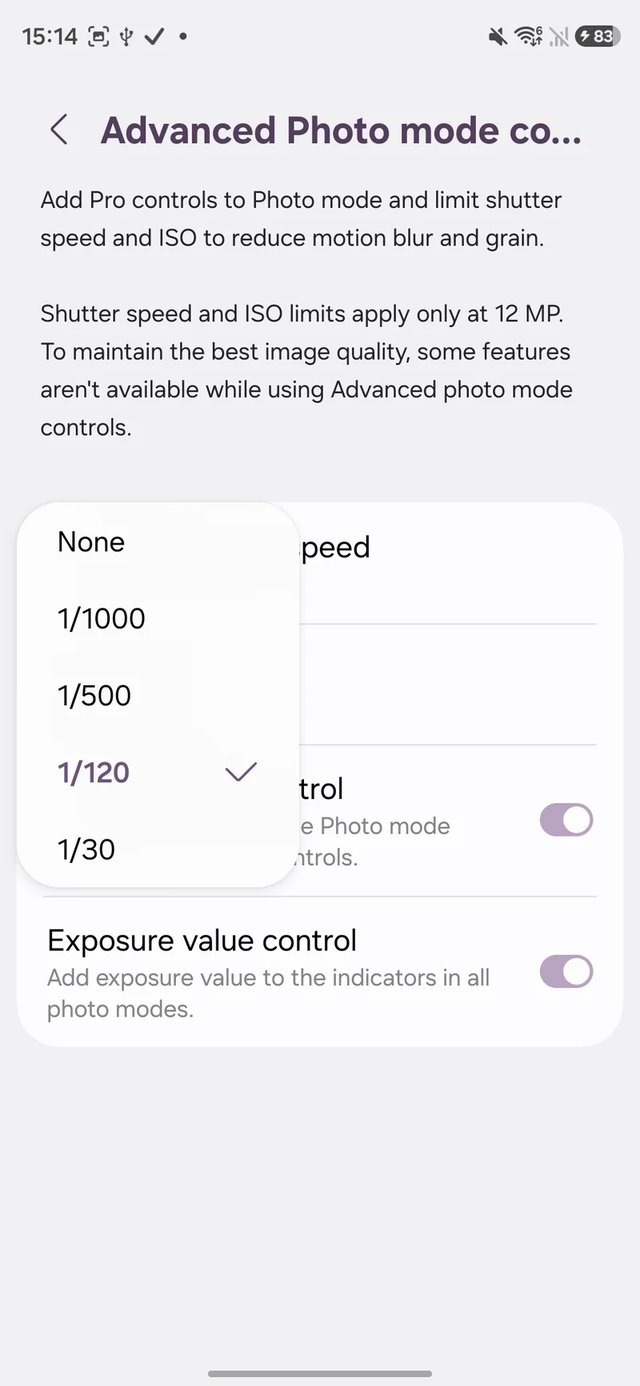
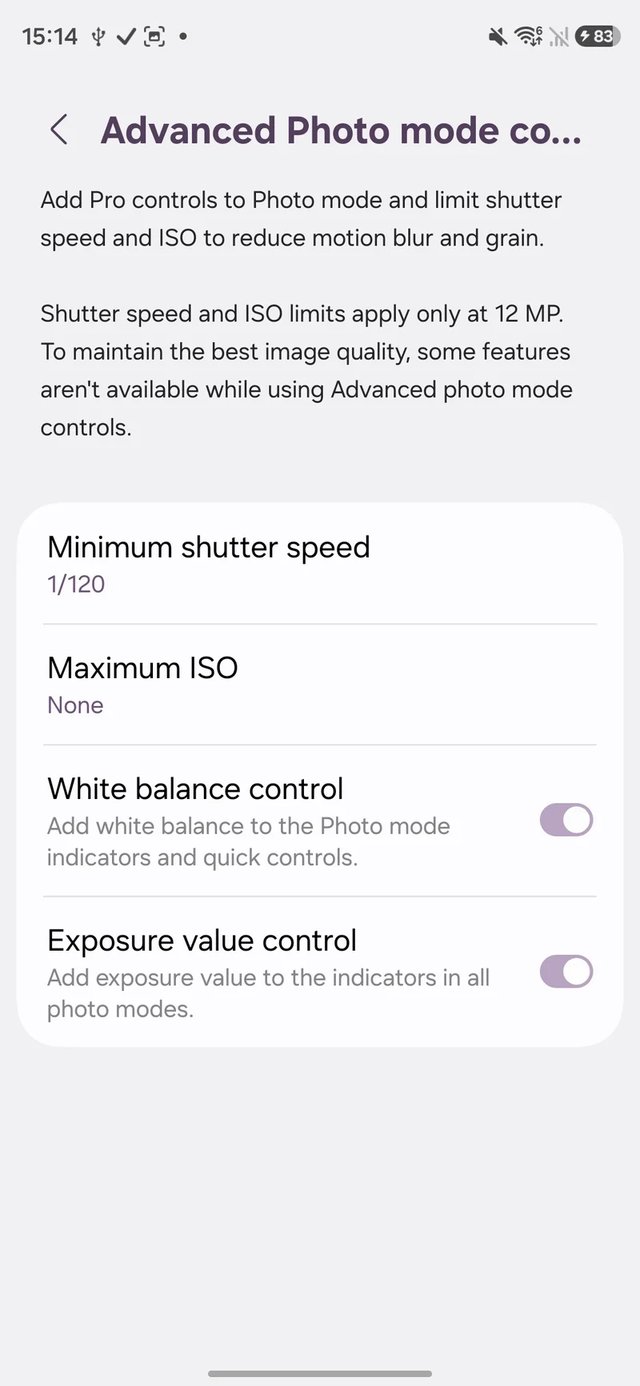
This menu also allows you to set the maximum ISO (50, 100, 200, or 400) to enhance light sensitivity while managing noise levels in your images.
Create Custom Camera Presets
For personalized shooting experiences:
- Open your camera’s Pro mode and adjust settings as desired.
- Go to Camera Assistant and enable “Presets in Pro mode.”
- Choose “Create from current settings,” name it, and save.
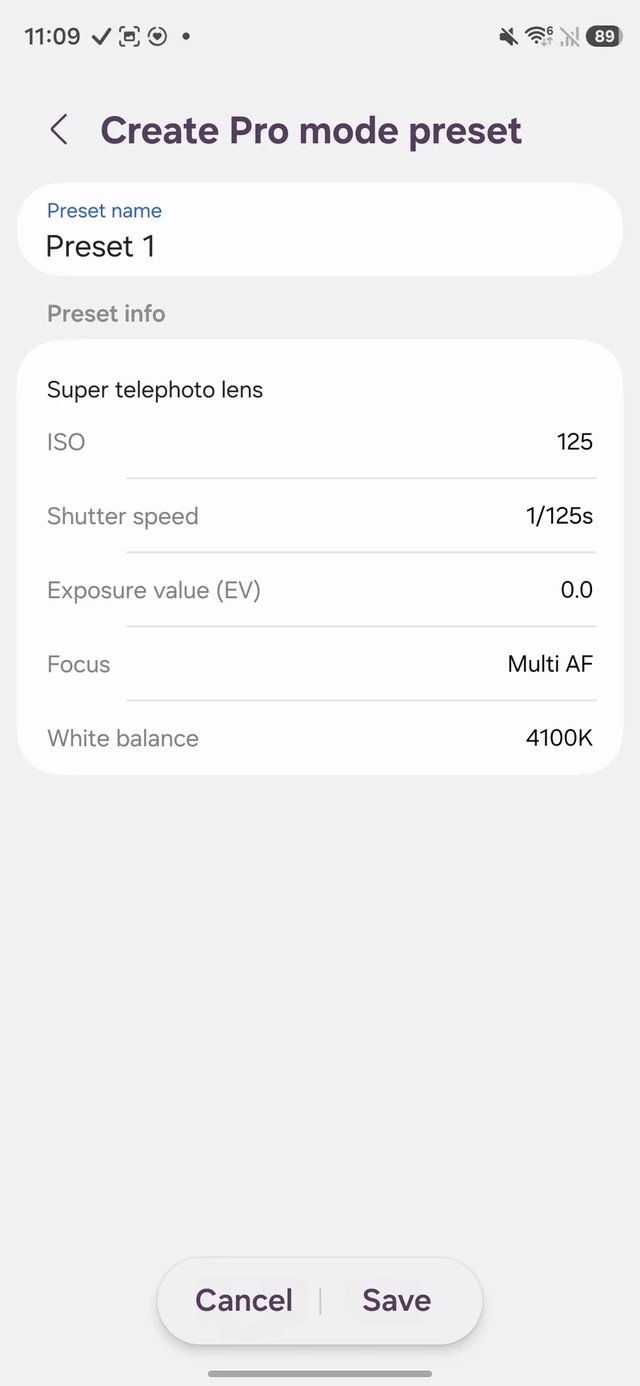
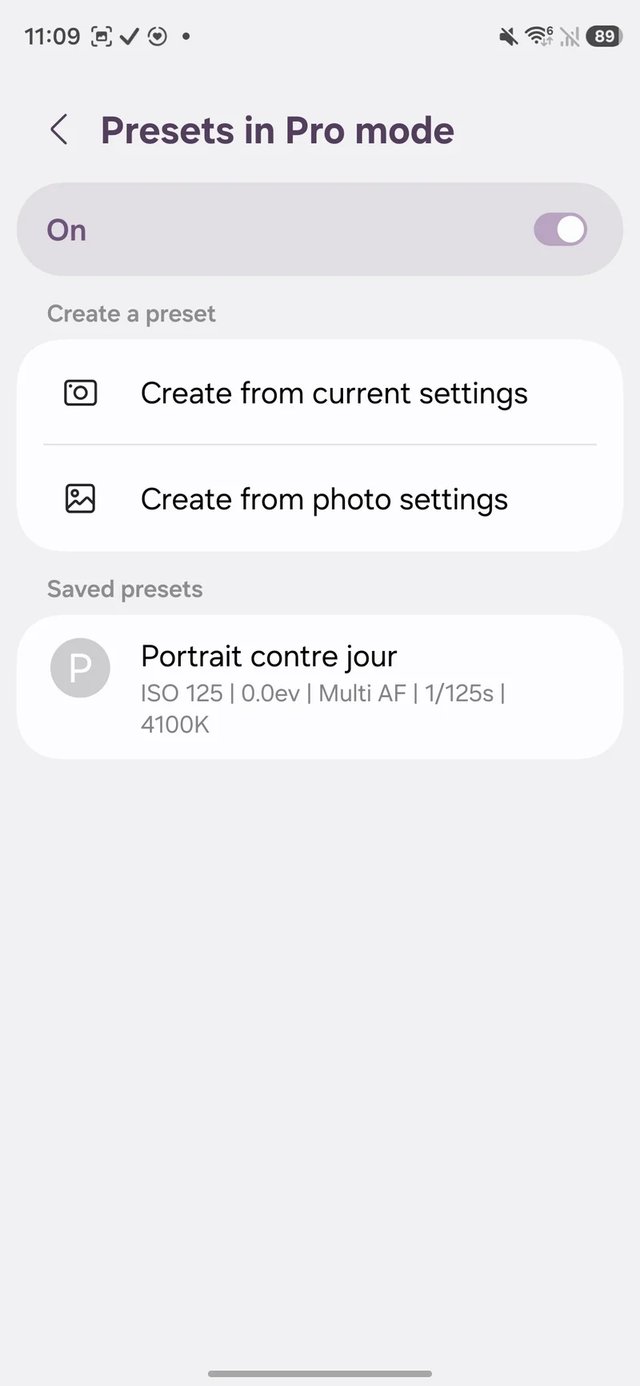
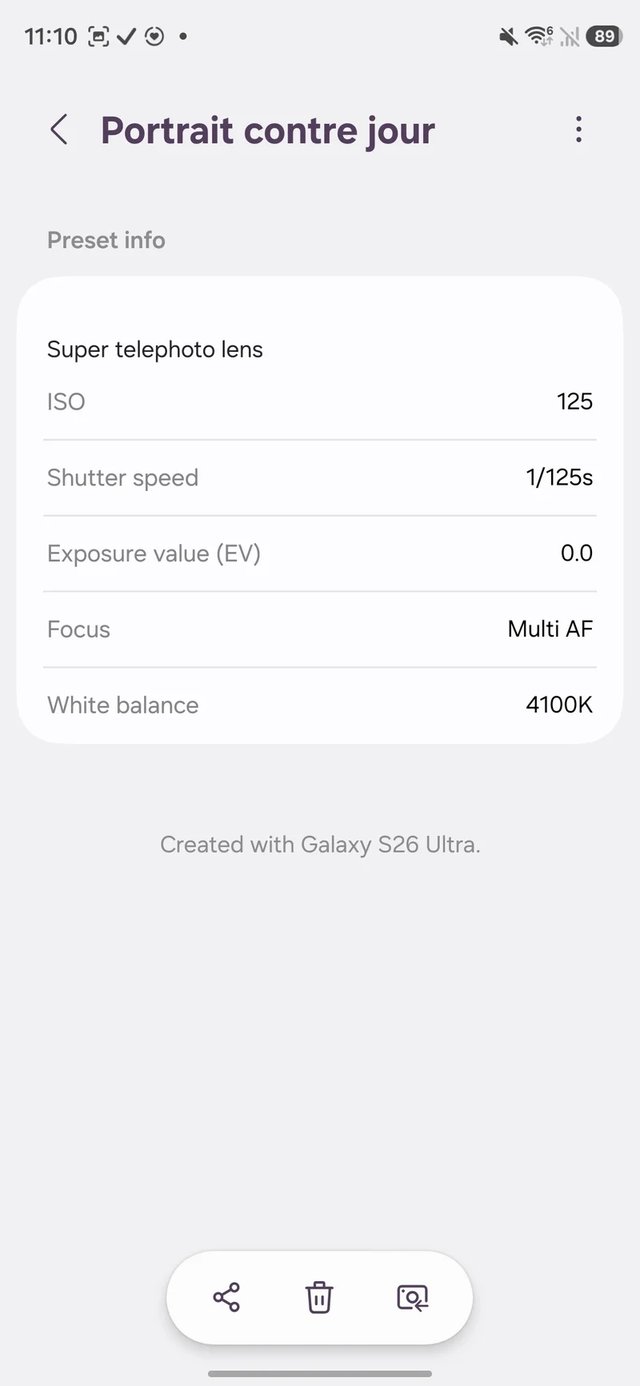
Alternatively, you can base presets on the settings of an existing photo by selecting “Create from photo settings.”
Galaxy AI Features
Smart Scam Protection
To take advantage of AI features, ensure you have a Samsung account. Activate Smart Scam Protection to guard against fraudulent calls and messages.
Effortless AI Eraser
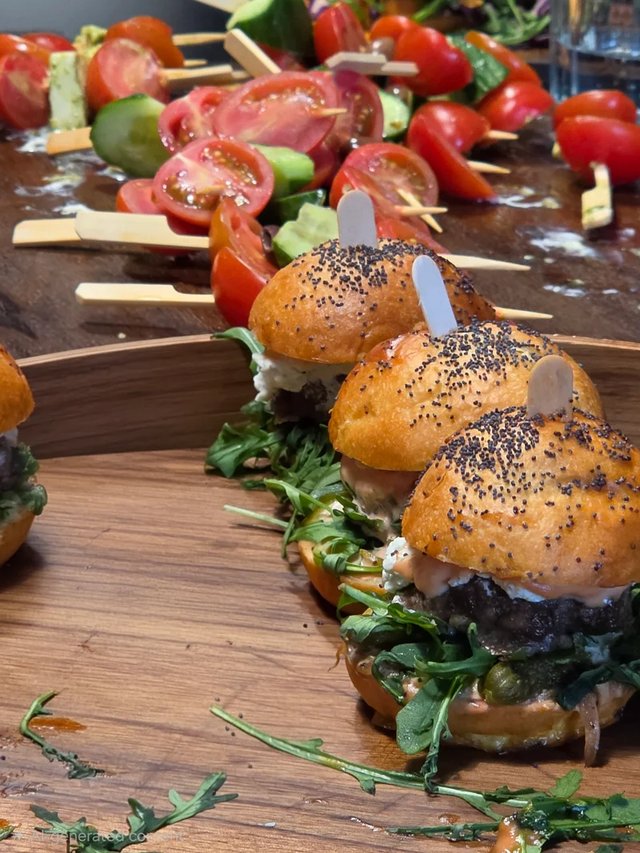
The Photo Assist feature offers an AI Eraser to seamlessly remove unwanted subjects from photos. With the S Pen, you can precisely select items for removal.

General Tips and Tricks
Manage Windows Efficiently
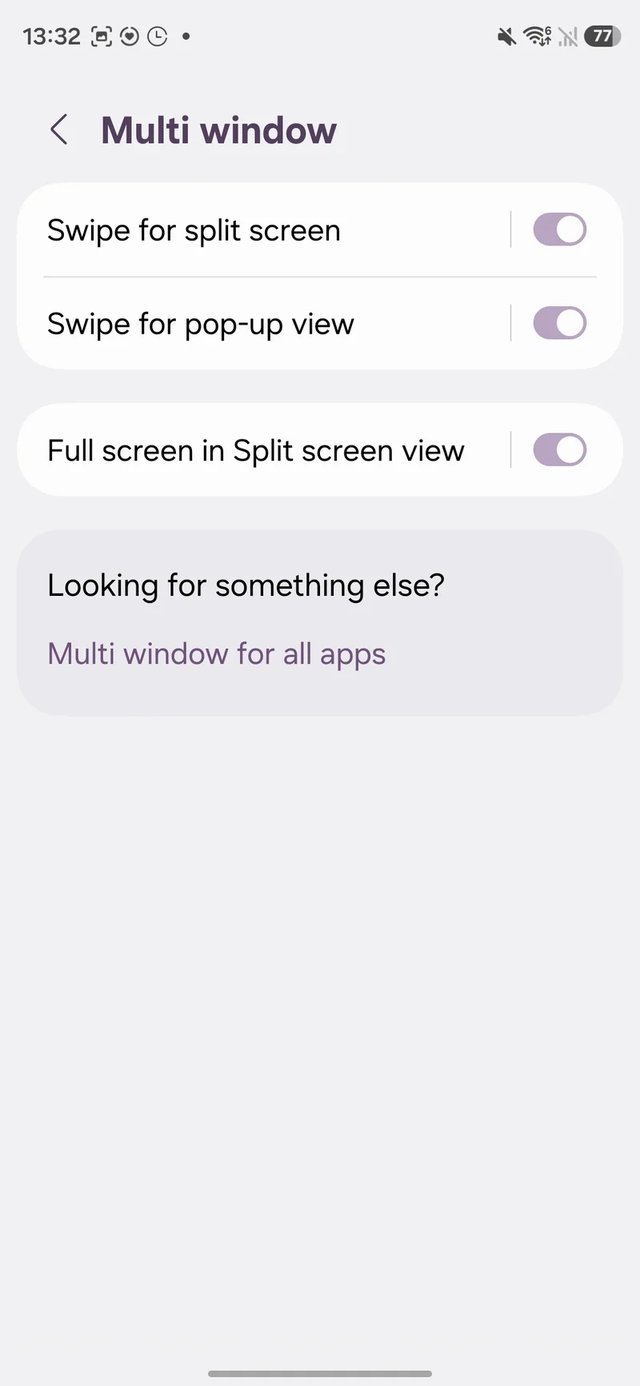
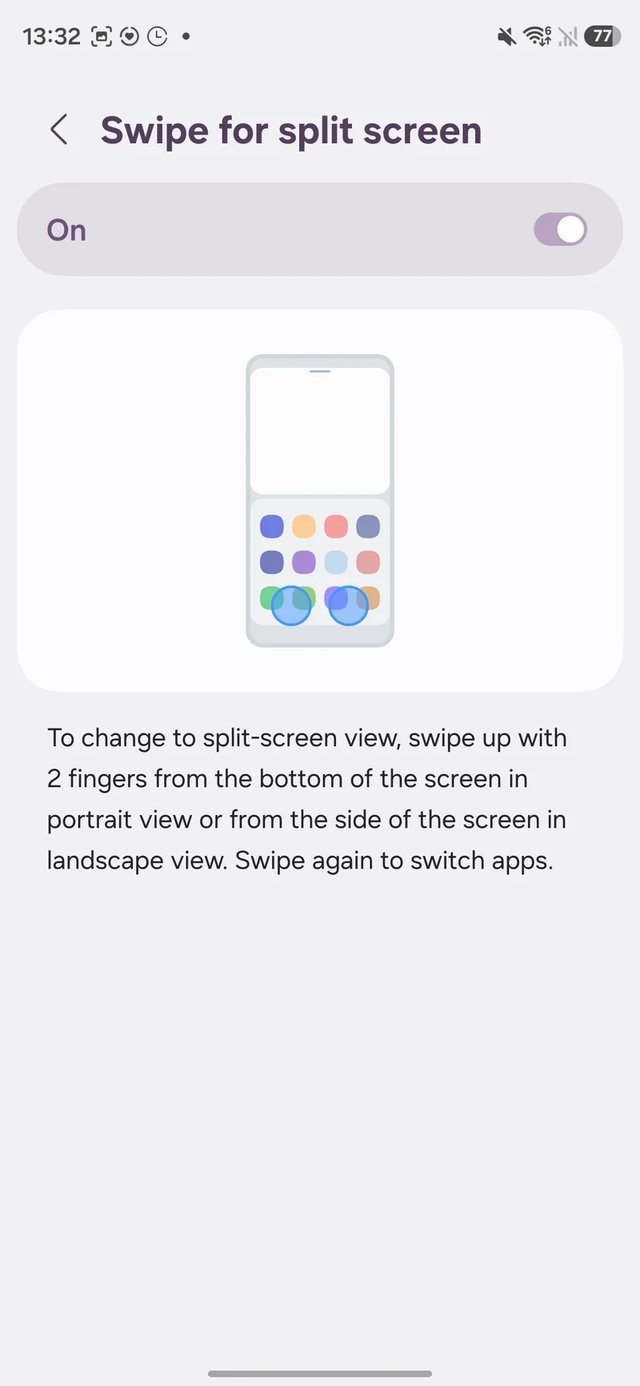
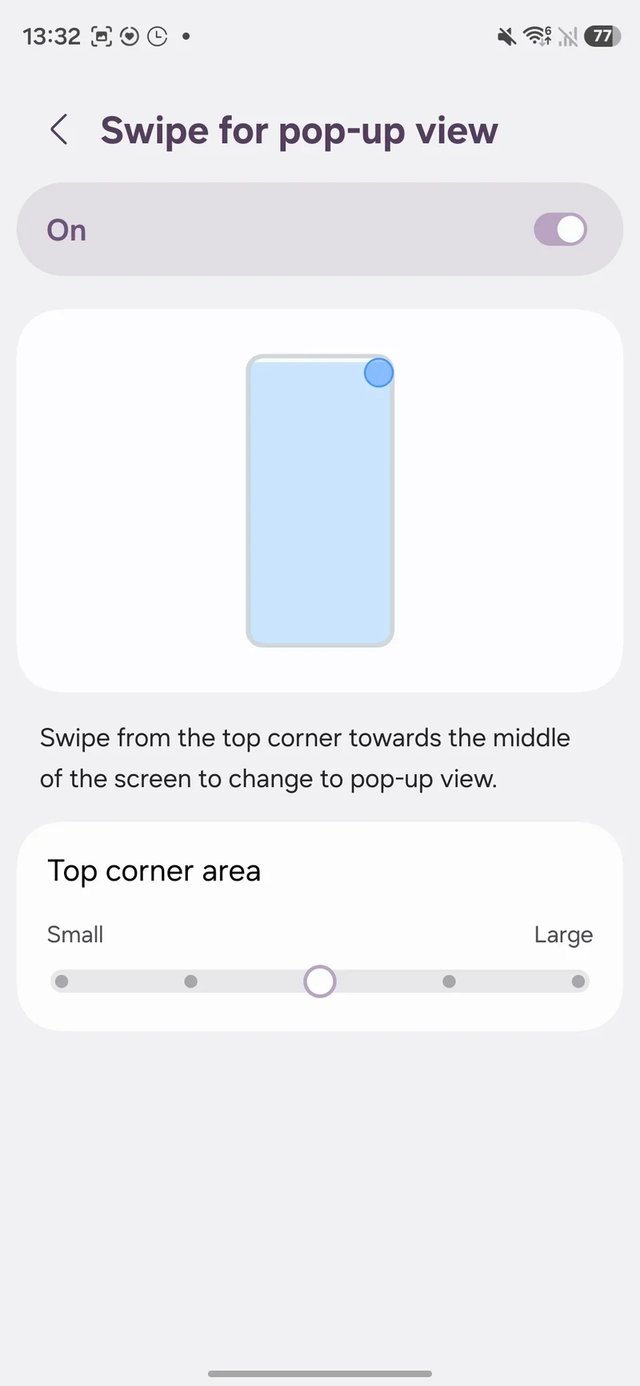
The One UI window management system maximizes multitasking. Set your device to open any app in pop-up view by swiping from either the top left or right corners, allowing for easy app resizing and movement.
Customize Quick Toggles
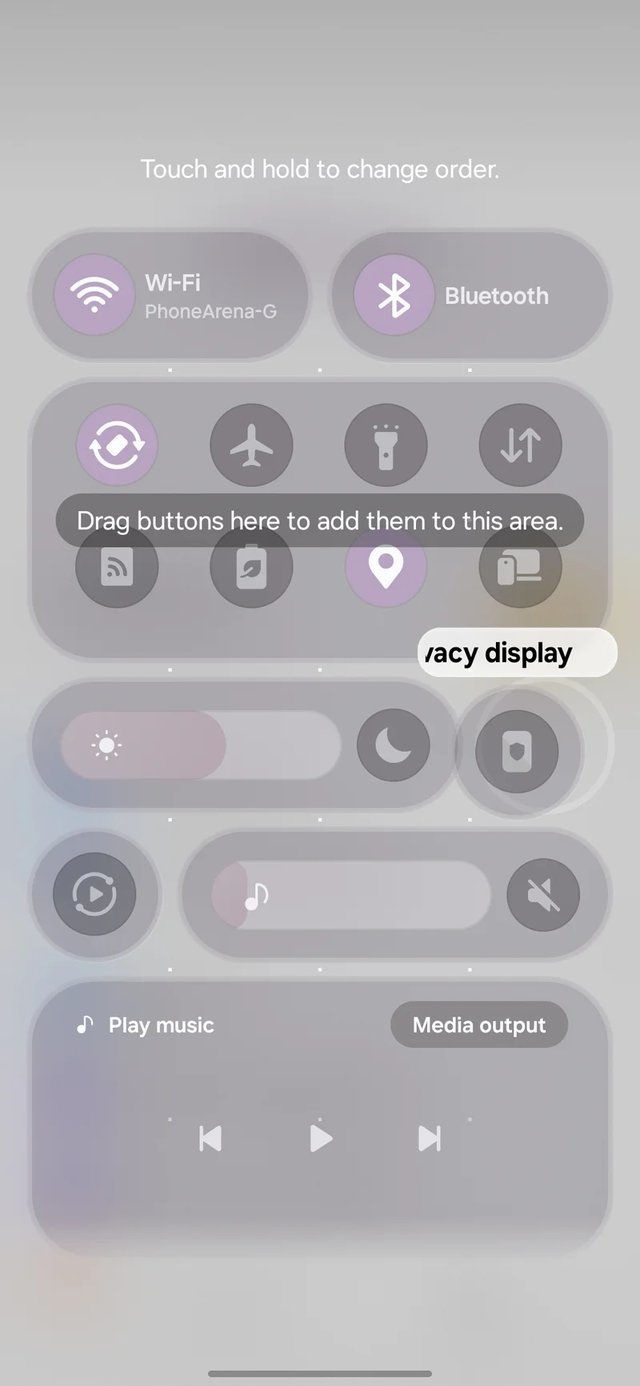
New in One UI 8.5 is the ability to personalize the Quick Toggles panel. Change the size and orientation of sliders for brightness and volume. Create a layout that is uniquely yours.
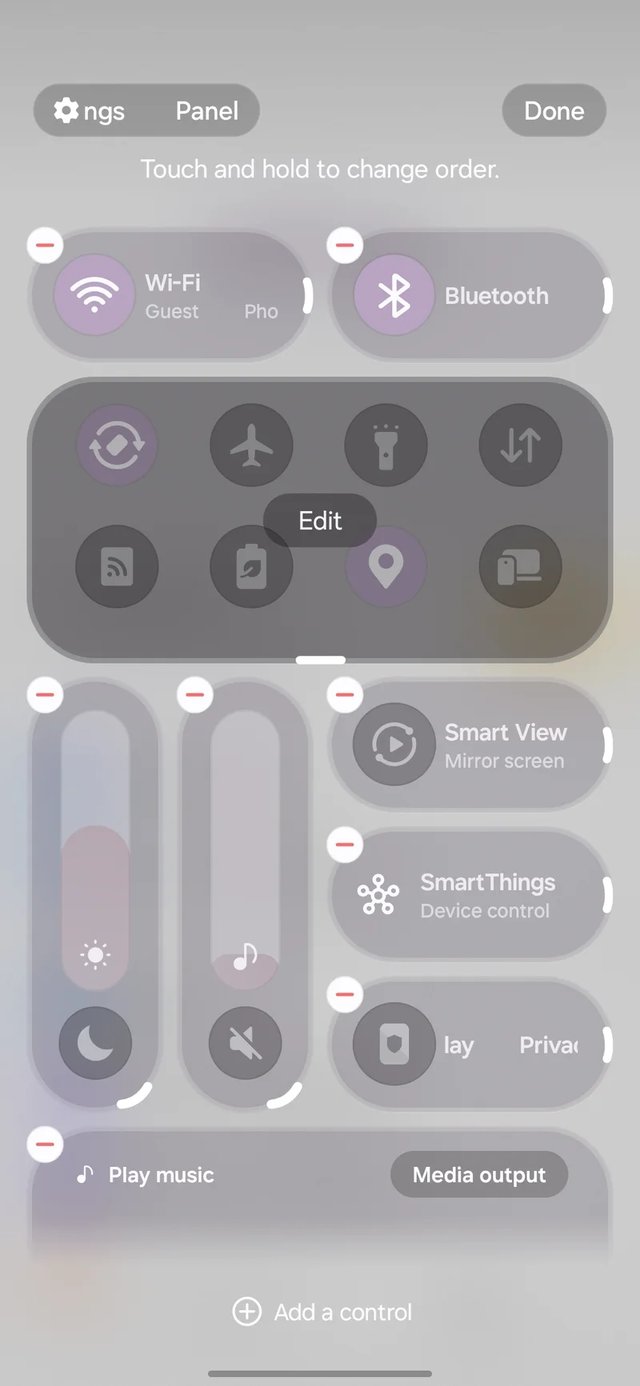
You can also switch the positions of your quick toggles and notifications for an even more personal experience.
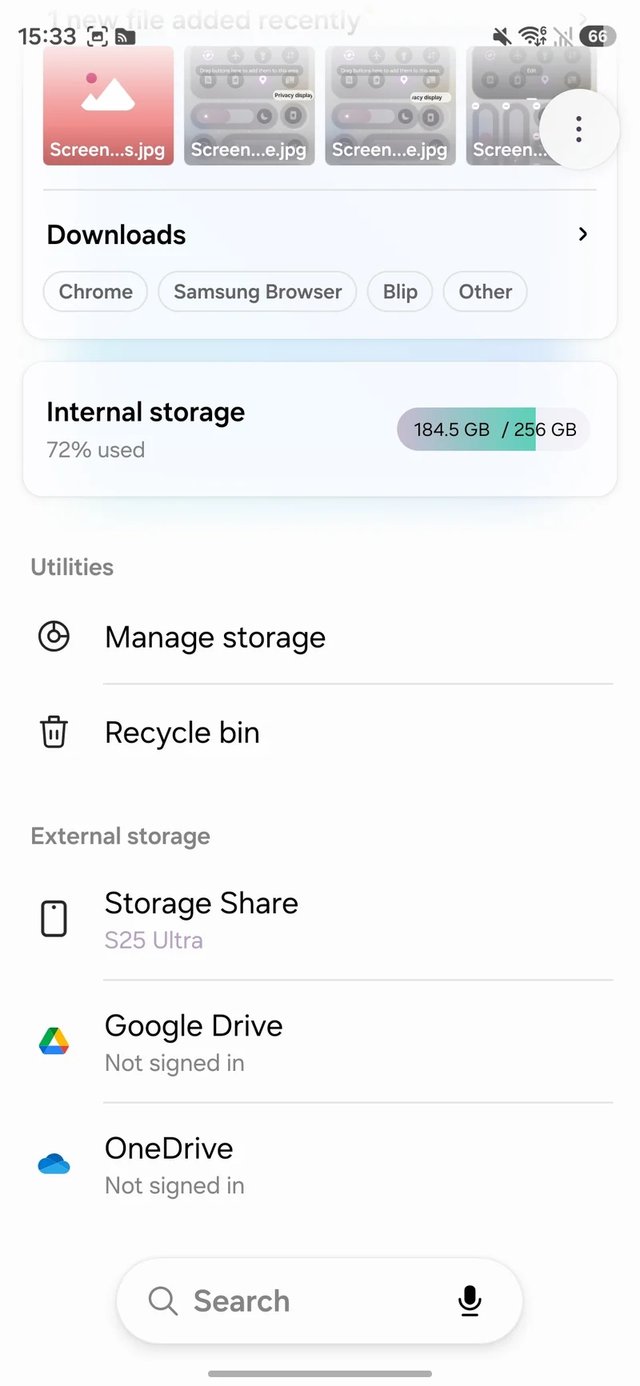
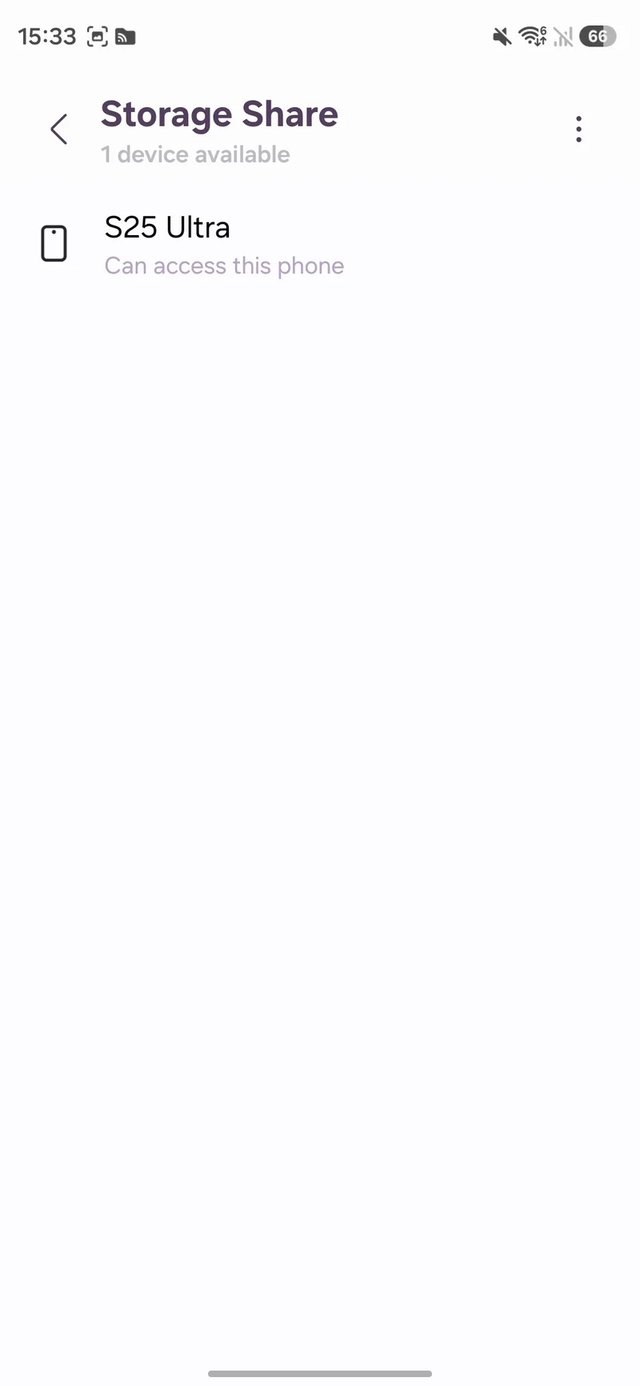
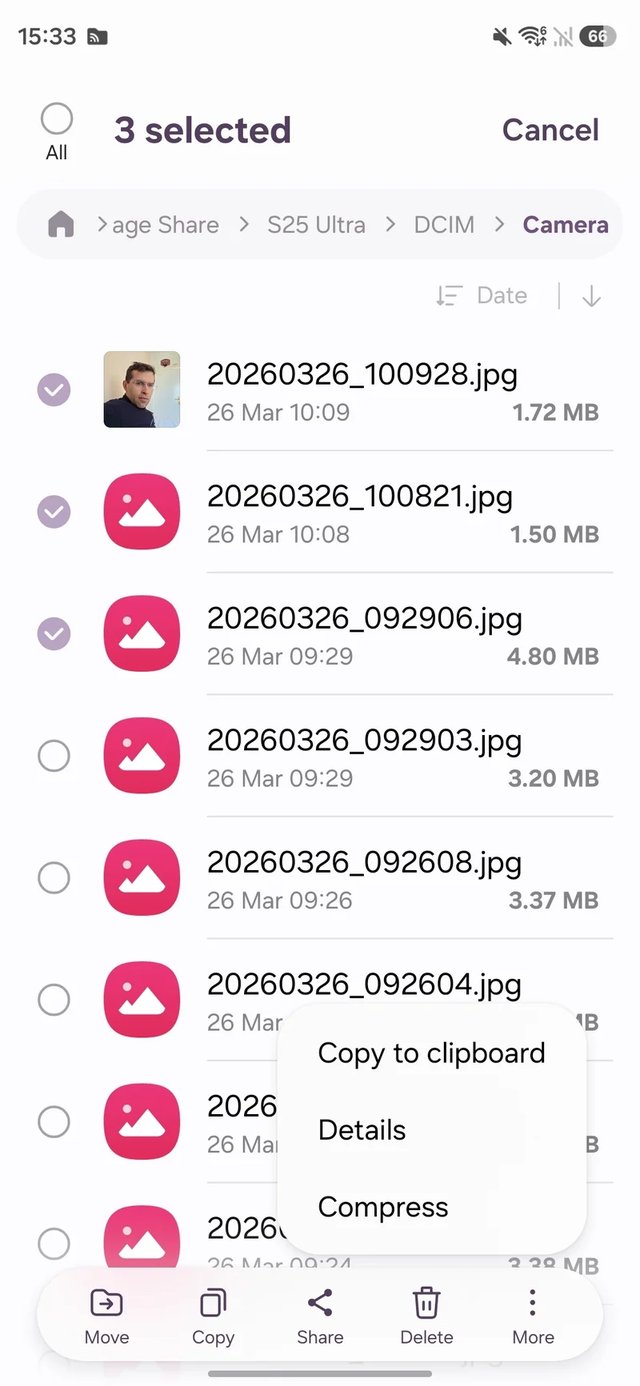
Access Storage from Nearby Devices
The Galaxy S26 series allows you to access storage from other Galaxy devices linked to your Samsung account, making file sharing simpler than ever.
Master Your Phone with Good Lock
The Good Lock app and its modules provide an extensive range of visual and functional customization options. Some must-try modules include:
- Camera Assistant: Enhance photography capabilities.
- Theme Park: Customize the visual aspects of your device.
- Pentastic: Personalize the S Pen experience.
- Home Up: Modify your home screen layout and animations.
- Display Assistant: Control brightness limit and speed adjustment.
- Custom Quick Panel themes: Shape the appearance of your notification and quick toggle panels.