In a recent move that has delighted Pixel users, Google has restored the popular "Tap to see what's playing" feature in its Now Playing app, just a month after it was unexpectedly removed. This feature, beloved by many, allows users to quickly identify songs playing in their vicinity, showcasing Google's commitment to listening to user feedback.
Response from Users Following the Update
Now Playing utilizes on-device technology to detect music playing nearby, providing song and artist information directly on the lock screen. When a song can't be recognized, users could tap the screen to access the "Tap to see what's playing" feature, which queries Google's servers for further identification. However, upon releasing a standalone Now Playing app last month, this option seemingly vanished.
On Friday, following user complaints, Google updated the Now Playing app from version 2026.03.02.x to 2026.03.24.x, and many users noticed the return of the "Tap to see what's playing" button. This update has been positively received, with users expressing appreciation for Google's responsiveness.
You can download or update the Now Playing app on your Pixel device from the Google Play Store using the provided link.
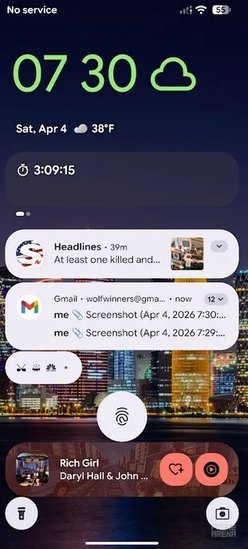
The lozenge at the bottom of the screen showcases the Now Playing feature on a Pixel. | Image by PhoneArena
Introducing the New Transparent Lozenge for Enhanced User Experience
The updated Now Playing feature now also includes a transparent lozenge, providing one-handed access to song details when a track is identified. Users can tap the song information to reveal a lozenge that displays the album cover, song title, and artist's name, along with options to like/dislike the song and play it via a preferred music streaming service.
If the Pixel's always-on display is disabled to save battery, the "Tap to see what's playing" button won't be visible. Users can enable a Now Playing shortcut for the lock screen by navigating to Settings > Display > Lock screen > Shortcuts > Now Playing. After setting this up, they can long-press on the shortcut to view song details, or utilize the 2 x 1 Now Playing Quick Setting tile for song identification.


